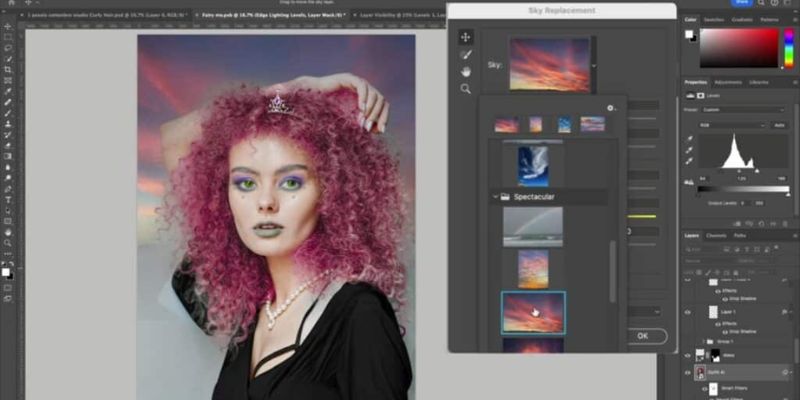
Artificial intelligence is revolutionizing creative design by increasing the speed and accessibility of sophisticated photo editing. Generative Fill, an AI-powered tool that enables users to add, delete, replace, or extend visual content with a few clicks, is one of Adobe Photoshop’s most remarkable inventions. Designers, photographers, marketers, and digital artists may just make a selection, enter a text prompt (or leave it blank), and Photoshop will produce realistic results without requiring them to spend hours using standard editing tools.
Understanding the context of an image, Generative Fill powered by Adobe Firefly creates new material that organically combines lighting, perspective, colors, and textures. You can also learn through FITA Academy. Generative Fill significantly accelerates the editing process, whether you’re deleting undesired elements from a trip snap, enlarging a product image for a marketing campaign, or producing creative digital artwork. The function of the feature, its useful applications, benefits, drawbacks, and best practices for producing outcomes of a professional caliber are all explained in this article.
Understanding Generative Fill in Photoshop
with pre-existing images and text instructions, users may create realistic picture content with Adobe Photoshop’s AI-powered Generative Fill editing tool. Generative Fill use artificial intelligence to examine the surrounding region and produce new pixels that blend in seamlessly with the original image, in contrast to conventional editing techniques that call for manually cloning, masking, or painting image parts. Adobe Firefly, a series of generative AI models created especially for creative professions, powers the technology.
The method is entirely non-destructive as users may modify or delete modifications without impacting the original image because the created material displays on distinct layers. Generative Fill provides versatility without sacrificing image quality, whether you’re experimenting with creative thoughts, adding missing background elements, or removing irritating items. It gives users more creative flexibility without compromising accuracy or control by fusing intelligent automation with Photoshop’s professional editing features.
How Does Generative Fill Work?
Generative Fill combines text-based AI creation with picture analysis. The first step in the procedure is to use tools like the Lasso Tool, Marquee Tool, or Object Selection Tool to choose a portion of a picture. You can also learn through Photoshop Classes in Chennai for expert guidance. Photoshop shows the Generative Fill option once the selection is made. When removing things, users can enter a descriptive prompt, such as “add colorful flowers,” “replace with a wooden table,” or “extend mountain landscape,” or they can leave the prompt blank.
Adobe Firefly analyzes the surrounding image, understands lighting, shadows, perspective, textures, and colors, and generates multiple realistic variations within seconds. Users can preview each variation and choose the one that best fits their project. Since each generated result appears on a new Generative Layer with its own mask, edits remain fully reversible and easy to refine. This intelligent workflow dramatically reduces editing time while maintaining professional-quality visual consistency throughout the image.
System Requirements and Getting Started
Users must have a suitable version of Adobe Photoshop with Adobe Firefly-powered functionality in order to utilize Generative Fill. An active internet connection and an Adobe Creative Cloud account are necessary because the technology depends on cloud-based AI processing. Installing the most recent version of Photoshop guarantees access to security updates, speed enhancements, and new AI features. Open your image, make a copy of the backdrop layer if needed, and become acquainted with Photoshop’s selection tools before beginning a project.
Clean and accurate selections generally produce better AI-generated results because the system understands exactly which area requires modification. Although Generative Fill is designed to simplify editing, users benefit from understanding basic Photoshop concepts such as layers, masks, and blending. Combining traditional editing skills with AI-powered tools creates a more flexible workflow and provides greater control over the final output. Beginners and experienced designers alike can quickly incorporate this feature into their creative projects.
Step-by-Step Guide to Using Generative Fill
To start, open your image in Photoshop and use the proper selection tool to choose the region you wish to change. Click the Generative Fill button from the contextual task bar once the selection has been created. If you want Photoshop to add or change particular information, enter a clear and detailed command. B School in Chennai can significantly boost your career readiness and employability. To remove an item, just create the result by leaving the prompt blank. Photoshop uses Adobe Firefly to evaluate your request and displays three distinct versions for comparison.
Carefully consider each choice, then select the one that most closely aligns with your artistic vision. Create more results or improve the precision of your prompt if none of the options live up to your expectations. You may continue modifying with standard Photoshop tools like masks, adjustment layers, and blending modes to produce a finished, expert-quality design since each outcome is placed on its own layer.
Practical Applications for Designers and Creators
By greatly simplifying difficult editing chores, Generative Fill has revolutionized processes in a number of creative sectors. It is used by graphic designers to swiftly produce realistic backdrops and design elements for advertising campaigns, social media visuals, and promotional materials. Without spending hours on manual editing, photographers may expand vistas, eliminate distracting items, fix damaged sections, and enhance image composition. For e-commerce catalogs, product photographers replace backdrops or add complimentary design elements to provide clearer marketing graphics.
During the design process, digital artists utilize Generative Fill to experiment with visual concepts, create fantastical settings, and generate new ideas. While keeping branding constant, marketing teams may create campaign variants considerably more quickly. Creating captivating images for presentations, films, and online learning resources benefits educators as well as content producers. Generative Fill increases efficiency in all creative fields while freeing up users’ time for artistic expression and narrative instead of tedious editing work.
Benefits, Limitations, and Best Practices
Accelerating creative workflows while achieving realistic results is one of Generative Fill’s biggest benefits. It fosters experimentation, cuts down on tedious editing jobs, and lets users explore a variety of creative options in a matter of minutes. Designers may alter or remove AI-generated material at any point throughout the project since adjustments are non-destructive. Know which one to use: photoshop vs illustrator. But the technology is not without its limits. Inconsistent or unrealistic results that need manual refining might be produced by complex settings, very rich textures, or ambiguous commands.
AI-generated material should always be thoroughly examined, particularly for commercial ventures where authenticity and accuracy are crucial. Transparency, copyright knowledge, and responsible content production are all essential ethical factors. Make exact choices, write thorough prompts, assess several iterations, and integrate AI-generated material with conventional Photoshop editing methods to get the best results. Instead than using Generative Fill to replace expert design abilities, use it as a creative helper.
Expert Tips and the Future of AI-Powered Editing
Generative Fill is only the start of AI-assisted creative creation as the technology develops. More sophisticated editing features will probably be included in further. Photoshop upgrades, enabling users to produce more realistic and adaptable material with less work. Instead of utilizing ambiguous descriptions, write suggestions that precisely describe, Things, colors, lighting, materials, and surroundings to optimize current outcomes. To produce smooth, high-quality pictures, combine Generative Fill with adjustment layers, Smart Objects, masks, and blending modes.
Before deciding on a final version, try a few different approaches, and don’t be afraid to use conventional editing tools to improve created material. Designers can stay competitive in an innovative market by keeping up with Photoshop’s latest AI features. By removing tedious duties and freeing artists to concentrate on imagination, narrative, and visual communication. Generative Fill improves creativity rather than replaces it. Creative professionals may get ready for the future of intelligent digital design by mastering this capability now.